
Getting Started with PulpPDF
Download, install, and compress your first PDF in under a minute. Everything runs locally — your files never leave your machine.
System Requirements
- macOS: macOS 11+ (Apple Silicon and Intel)
- Windows: Windows 10+ (Intel, AMD, and Snapdragon)
Installation
macOS
- Download the installer (see below)
- Open the
.dmgfile - Drag PulpPDF to your Applications folder
- Launch PulpPDF from Applications
| Installer | SHA-256 |
|---|---|
| Universal (.dmg) — recommended | 9df7d269f7d5f6d81eb0784d8264a55d5f58d117037278302bc4b2105739f3a3 |
| Apple Silicon (.dmg) | 743f17405fe1614f592608d106761002c3e9ad51f98fce592b23c20033a7449f |
| Intel (.dmg) | 42acb429164b0d498c84b0679d5485768bf4377b27a57cfe038408304059ff6b |
Windows
- Download the installer (see below)
- Run the installer and follow the prompts
- Launch PulpPDF from the Start Menu
| Installer | SHA-256 |
|---|---|
| Intel & AMD (x64) | |
| Setup installer (.exe) | 955b7f86c5875082dd66a95f87b97a0ac1e3373be67806b4fadc594d8b60f777 |
| MSI package (.msi) | 605435125295aeb1e4c1d7eb9b41928ac8b62a379d5f57045faec91d372b057a |
| Snapdragon (ARM64) | |
| Setup installer (.exe) | 8625676b6dd36db1e06372f2c8353f9cf47b2c7dfeee232e8b9242b6ad67dd37 |
| MSI package (.msi) | bcd09e4beda06e683eca6681a684715b05a14f496cbd857a374185ef9069e5e3 |
Launch PulpPDF. No account needed. You're ready to compress.
Windows SmartScreen warning
When you first run PulpPDF on Windows, you may see a SmartScreen warning saying the app is "not commonly downloaded." This is normal for new software — it does not mean the app is unsafe.
PulpPDF is digitally signed, but SmartScreen builds trust based on download volume over time. To proceed:
-
Click "More info" on the warning dialog.
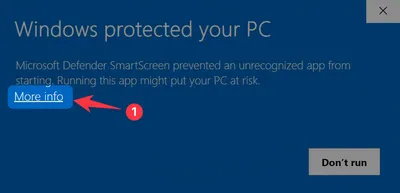
-
Click "Run anyway".
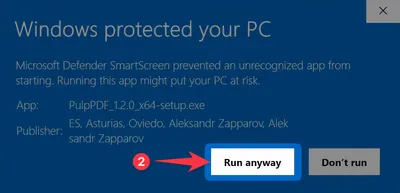
-
If Windows shows a second "Open File — Security Warning" dialog, click "Run" to confirm.
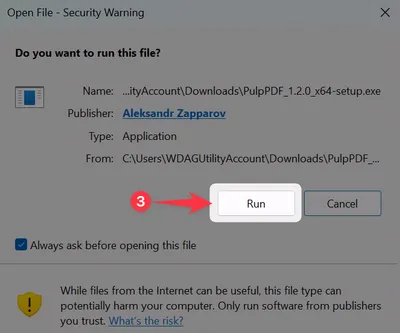


This warning will disappear as more users download and install PulpPDF. Microsoft has confirmed this is expected behavior for new applications building reputation.
Compress Your First PDF
- Drop a PDF onto the app window, or click the drop zone to browse.
- PulpPDF shows: page count, image count, file size, and OCR status.
- Pick a preset — Balanced is the default.
- Click "Compress PDF" — choose where to save.
- See the result: original size → compressed size with percentage saved.
Presets at a Glance
| Preset | Best for |
|---|---|
| None | OCR only — no compression |
| High Quality | Print-ready documents |
| Balanced | General purpose (default) |
| Maximum | Email attachments, sharing |
| Ultra | Smallest possible size |
See Compression Presets for details.
OCR
Toggle OCR to add searchable text to scanned PDFs. PulpPDF uses native OS text recognition (macOS Vision / Windows OCR). Pages with existing text are skipped automatically.
Bulk Mode
Drop multiple PDFs to enter bulk mode. Pick a preset, choose an output folder, compress all at once.